
Updated September 4, 2026
Screen Time uses a code separate from the iPhone’s normal unlock passcode. That distinction explains why a device owner may unlock the phone yet still be unable to change App Limits, Downtime, content restrictions, or communication settings.
The correct solution depends on who configured Screen Time. This guide covers personal devices, a child’s iPhone in Family Sharing, old-device migration problems, and situations where the recovery account is not obvious.
Choose the Correct Screen Time Recovery Path
| Situation | Who can reset it | What is needed |
|---|---|---|
| Your own iPhone or iPad | The device owner | The Apple Account used when Screen Time recovery was configured. |
| Child account in Family Sharing | The family organizer | The organizer’s device passcode and access to the family settings. |
| School or employer device | The organization | Help from the administrator that manages the device. |
| Unknown recovery account | The original account holder | Identify the Apple Account used for Screen Time, which may differ from the currently signed-in account. |
How to Bypass Screen Time Passcode by Resetting It
Reset the code on your own iPhone or iPad
- Open Settings and select Screen Time.
- Choose Change Screen Time Passcode, then select it again.
- Tap Forgot Passcode? when the option appears.
- Enter the Apple Account credentials used when Screen Time recovery was set up.
- Create and confirm a new Screen Time passcode.
Reset a child’s code through Family Sharing
The family organizer should open Screen Time for the child from the organizer’s own device, choose the child’s name, and change the Screen Time passcode. Apple may request authentication with the organizer’s device passcode, Face ID, or Touch ID.
Apple’s current recovery instructions are available in If you forgot the Screen Time passcode. Follow Apple’s page when wording differs from your device because settings can change between iOS releases.
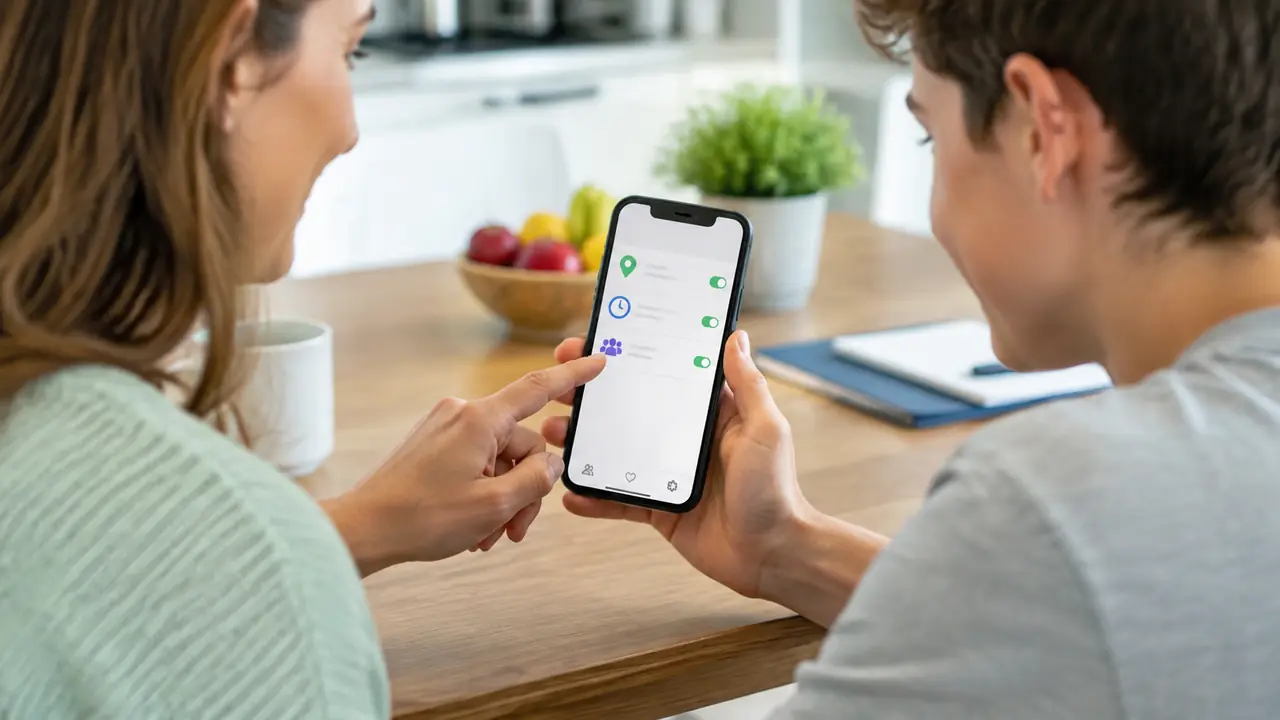
Why Forgot Passcode May Not Work
- Wrong Apple Account: Screen Time recovery may use a different account from the one currently shown at the top of Settings.
- Family role mismatch: a child cannot reset a restriction controlled by the family organizer.
- Outdated software: update every device in the Family Sharing group before changing synchronized settings.
- Managed device: a school or employer policy can override ordinary Screen Time controls.
- Sync delay: changes may need time and a stable internet connection to reach every family device.
How to Handle Downtime Without the Passcode
If you manage the device, reset the passcode and then adjust the Downtime schedule normally. If a child needs temporary access, the organizer can approve a request for more time rather than revealing the code. For a school or employer device, contact the administrator. Changing the date, opening unsupported browsers, or exploiting a temporary software bug is unreliable and weakens the protection the administrator intended.
Parents should also review whether the schedule still fits school, homework, travel, and emergency needs. A control that blocks legitimate tasks too often encourages arguments and workarounds. Use different limits for entertainment, communication, and school apps where the platform permits it.
Screen Time Passcode Recovery Checklist
- Write down whether the restriction affects one device or every device in the family.
- Confirm the child and organizer accounts shown in Family Sharing.
- Update the organizer’s device and the restricted device to the latest compatible software.
- Try the official Forgot Passcode route with the account used during recovery setup.
- Check whether the device belongs to a school or employer before erasing or removing profiles.
- After resetting the code, test one App Limit and one Downtime period before rebuilding every rule.
This sequence helps separate an account problem from a synchronization problem. If one device accepts the new code and another does not, restart both devices, confirm their internet connection, and give the family settings time to synchronize. If every device rejects the recovery account, use Apple Account recovery before considering a device erase.
Prevent the Same Lockout
Add Screen Time Passcode Recovery when Apple offers it, store the organizer account in a password manager, and keep the family roles current. Do not use the same code as the child’s device passcode. Review limits together so everyone understands which apps remain available during Downtime and how to request an exception.
For younger children, block account changes and passcode changes from Content & Privacy Restrictions. For teenagers, explain which controls are safety rules and which are temporary routines. Clear rules reduce attempts to find a Screen Time bypass and make it easier to identify a genuine technical failure.
When You Need More Than Apple Screen Time
Screen Time is strongest for Apple-family controls, purchase approval, app limits, and content restrictions. Families that want a shared review dashboard, location check-ins, or structured reports may compare a dedicated parental-control service. Start with our apps to control screen time comparison and the iPhone parental-control guide.
A third-party app cannot legitimately recover an unknown Screen Time code or override an organization’s management. Its value begins after the parent or device owner completes the required installation and permissions.
Compare the Dashboard Before You Buy
The Sphnix demo shows messages, calls, activity, location check-ins, alerts, and reports in one review interface. Feature availability depends on the device and completed setup.
Frequently Asked Questions
Can I bypass Screen Time without the Apple Account?
There is no supported silent bypass. First determine which Apple Account was used for Screen Time recovery. A Family Sharing organizer can reset a child’s code from the organizer’s device.
Is the Screen Time passcode the same as the iPhone passcode?
No. They are separate controls and can use different codes.
Can a factory reset remove Screen Time?
Erasing and setting up a device as new can remove local settings, but it also removes data and does not bypass Activation Lock or organization management. Restoring certain backups may restore settings.
Can Sphnix bypass Screen Time?
No. Sphnix requires an authorized setup. It does not defeat Apple passcodes, Family Sharing controls, or managed-device policies.
Leave a Reply