
The best apps to control screen time depend on the devices in your home. Apple Screen Time is the strongest free starting point for iPhone and iPad. Google Family Link is the practical free choice for Android and Chromebook. Families that need cross-platform schedules, web filtering or reports can compare Qustodio, OurPact, Bark, Norton Family and Parentaler.
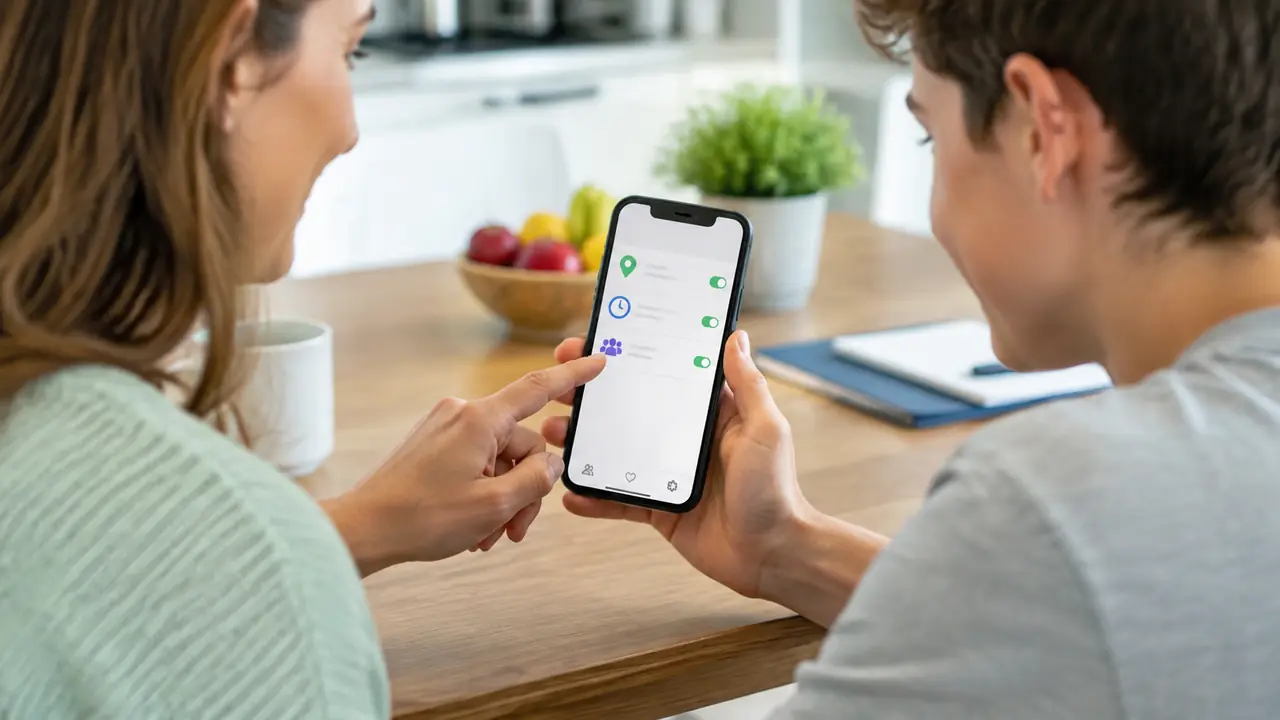
Need more context than a screen-time total?
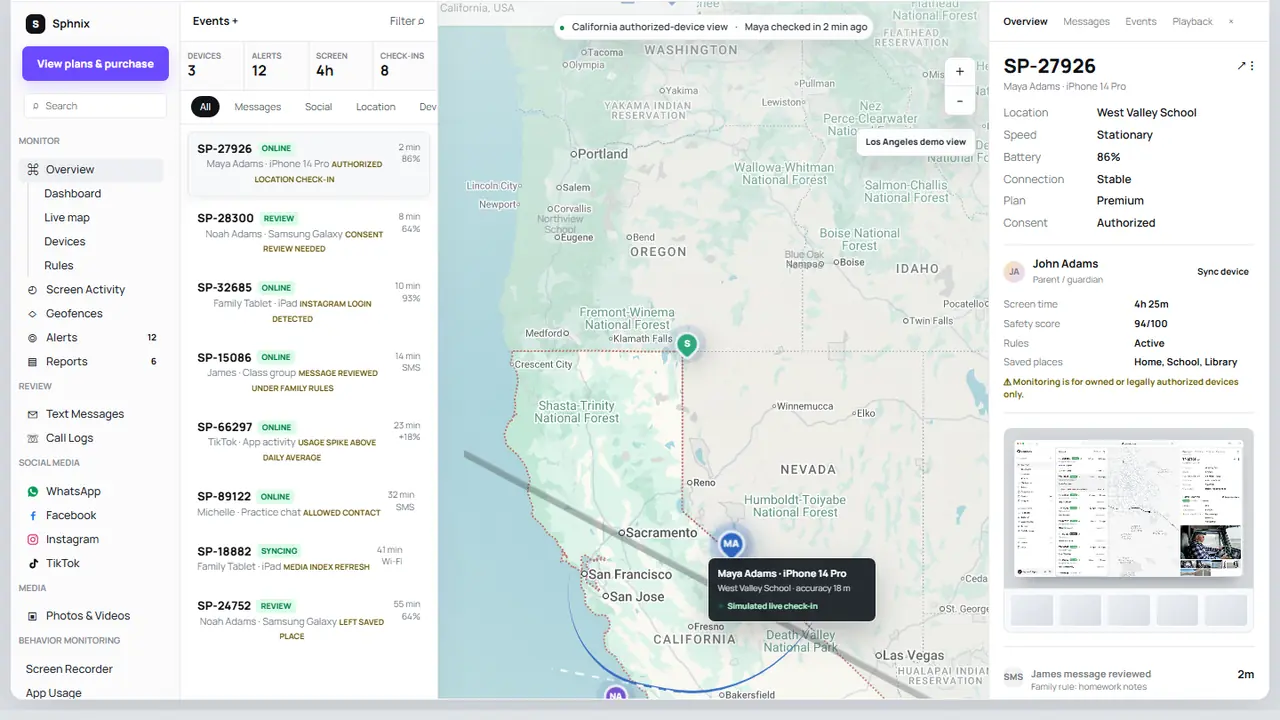
Sphnix is a monitoring dashboard, not a replacement for Apple or Google’s built-in time limits. Its live demo shows how device status, app activity, messages, calls, location and reports can be reviewed together after an authorized device is connected.
Apps to control screen time at a glance
| App | Best for | Works best on | Cost approach |
|---|---|---|---|
| 1. Apple Screen Time | iPhone and iPad limits | Apple family devices | Free |
| 2. Google Family Link | Android and Chromebook limits | Google family accounts | Free |
| 3. Qustodio | Cross-platform schedules and reports | Mixed-device homes | Free trial/tier may be limited |
| 4. OurPact | Visual schedules and app rules | iPhone-focused families | Free and paid tiers vary |
| 5. Bark | Safety alerts plus household controls | Families wanting alerts | Paid plans |
| 6. Norton Family | Web supervision and school routines | Multi-device households | Paid or bundled |
| 7. Parentaler | Comparing a paid family dashboard | Confirm current device support | Check partner offer |
| 8. Sphnix | Activity context alongside family rules | Confirm plan requirements | Preview first |
Spy Wizards may receive compensation from marked partner links. Product placement is based on use-case fit and setup clarity.
What screen-time apps can and cannot do
A screen-time app can set daily device limits, restrict individual apps, schedule downtime and sometimes filter websites. Apple says Screen Time can apply limits to app categories or individual apps for a child in Family Sharing. Google says Family Link can set a weekly schedule, daily limits and app limits on supported Android and ChromeOS devices.
No app can teach self-control by itself. A child may still use another device, a browser not covered by the filter or an account outside the family group. Platform rules also matter. An app with powerful Android controls may offer fewer options on iPhone. Check the current setup guide for every device before paying.
The eight best options
1. Apple Screen Time: best free choice for iPhone
Free
Screen Time is built into iPhone and iPad. Parents can use Family Sharing to manage a child’s downtime, app limits, communication limits and content restrictions from their own Apple device. Because it works inside the operating system, it is the first option to try before installing another app.
Check before setup: the child’s Apple Account must be in the family group, devices should be updated, and the parent should keep the Screen Time passcode private. Apple’s Screen Time instructions show the current menu path.
2. Google Family Link: best free choice for Android
Free
Family Link can manage daily limits, bedtime schedules and per-app limits for a supervised child’s Android device or Chromebook. Google notes that system apps cannot always receive app limits. Parents can install the Family Link parent app on Android or iPhone, but the strongest child-device controls are on Android and ChromeOS.
Check before setup: the child’s Google Account, device version, family group and any apps marked as unlimited.
3. Qustodio: best for mixed-device households
Cross-platform
Qustodio is a reasonable next step when a family uses several platforms and wants schedules, reports and web controls in one parent account. The feature list is not identical on every operating system. Compare the iOS and Android pages separately, especially if app blocking is the main reason for buying.
Check before buying: device count, browser coverage, per-app controls, location features and what the free version includes.
4. OurPact: best for visual schedules
Schedules
OurPact is built around routines. Parents can create recurring schedules for school, homework, bedtime and free time instead of relying only on one daily number. That approach suits families whose main issue is when a device is used, not just how long.
Check before buying: current iOS app-management support, number of children and devices, schedule limits by plan, and whether location tools are included.
5. Bark: best when safety alerts matter too
Safety alerts
Bark combines household controls with alerts about selected online-safety concerns. It is a different purchase from a strict timer. Parents who want a signal when something may need a conversation can prefer this model to reading every activity record.
Check before buying: which services connect on the child’s platform, how iOS coverage differs from Android, and whether the plan includes screen-time rules or only alerts.
6. Norton Family: best for web and school routines
Web supervision
Norton Family is useful when web supervision and focused school periods matter more than social-app detail. It can also appeal to households already paying for a Norton family-security bundle.
Check before buying: supported browsers, iOS limitations, device count and whether the controls you want are included in an existing subscription.
7. Parentaler: best paid partner option to compare
Partner
Parentaler is marketed for family oversight. It belongs on the shortlist when you want to compare a commercial dashboard against mainstream parental-control apps. Do not assume every advertised activity feature is also a screen-time control; confirm the exact feature and platform.
Check before buying: app-limit support, local setup requirements, iPhone versus Android differences, billing period and cancellation terms.
8. Sphnix: best for reviewing activity context
Dashboard
Sphnix is included for families who have moved beyond “how many hours?” and need a clearer review dashboard. The demo includes screen activity beside location, communication, device status and weekly reports. It should complement a disclosed family policy and platform time limits, not replace them.
Check before buying: device compatibility, connection method, plan scope and which records are available from the phone you manage.
How to choose apps to control screen time
- List every device. Include phones, tablets, Chromebooks, game consoles and shared computers.
- Decide whether you need limits or monitoring. A timer, website filter and activity dashboard solve different problems.
- Try the built-in option first. Screen Time and Family Link may cover the job for free.
- Test one routine. Set bedtime or homework hours before building a complicated weekly schedule.
- Choose essential exceptions. Phone calls, maps, school tools and emergency contacts may need continued access.
- Review together after seven days. Check whether the limit reduced conflict or simply moved activity to another device.
A simple seven-day setup plan
Day 1: record the current screen-time report without changing anything. Day 2: agree on bedtime and school-hour expectations. Day 3: set limits for the one or two apps causing the most conflict. Day 4: confirm emergency and school apps still work. Day 5: check for a second device or browser that makes the rule meaningless. Day 6: adjust limits based on homework, travel and family plans. Day 7: review the report together and decide what to keep.
Start small. A schedule that everybody understands is more useful than twenty restrictions that trigger exceptions all day.
Compare before paying
Use Apple Screen Time or Family Link for free limits. Preview Sphnix when you need a broader activity dashboard, then confirm the device and plan requirements before checkout.
Frequently asked questions
What is the best app to control screen time?
Apple Screen Time is the best free starting point for iPhone and iPad. Google Family Link is the best free starting point for Android and Chromebook. Qustodio is worth comparing for a mixed-device household.
Can I control my child’s screen time from my phone?
Yes. Apple Family Sharing lets a parent manage a child’s Screen Time from another Apple device. Google Family Link lets a parent manage a supervised Android device or Chromebook from the parent app.
Can screen-time apps block individual apps?
Many can, but support differs by operating system. Apple Screen Time can limit app categories or individual apps. Family Link supports app limits on compatible Android devices, although some system apps are exempt.
What if my child bypasses screen-time limits?
Check account roles, passcodes, alternate browsers, unlimited apps and other devices first. Then simplify the rules and discuss the workaround. Adding more software without fixing the setup often creates more conflict.
Does Sphnix control screen time?
Sphnix is presented here as an activity-review dashboard. Use Apple, Google or a dedicated parental-control app for direct time limits, and confirm Sphnix plan capabilities before purchase.
Final verdict
The best apps to control screen time are usually already on the phone. Start with Apple Screen Time or Google Family Link. Move to Qustodio, OurPact, Bark, Norton Family or Parentaler when you can identify a missing feature. Use the Sphnix demo when you need broader activity context as well as household time rules.
Sources: Apple Screen Time for a child, Google Family Link screen-time limits, and Google parental controls.
Leave a Reply