
Updated September 3, 2026
The best parental control apps for iPhone depend on what you need to manage. Start with Apple Screen Time for free app limits, content restrictions, purchase controls, and communication settings. Consider a paid app when you need a clearer parent dashboard, cross-platform management, location tools, or additional alerts. On iPhone, always verify the exact setup and feature list before paying because iOS limits what third-party apps can see.
Quick shortlist
- Best free starting point: Apple Screen Time
- Best dashboard to inspect before buying: Sphnix
- Best established all-round control option: Qustodio
- Best alert-focused option: Bark
- Best affiliate options to compare: mSpy, Eyezy, and Parentaler
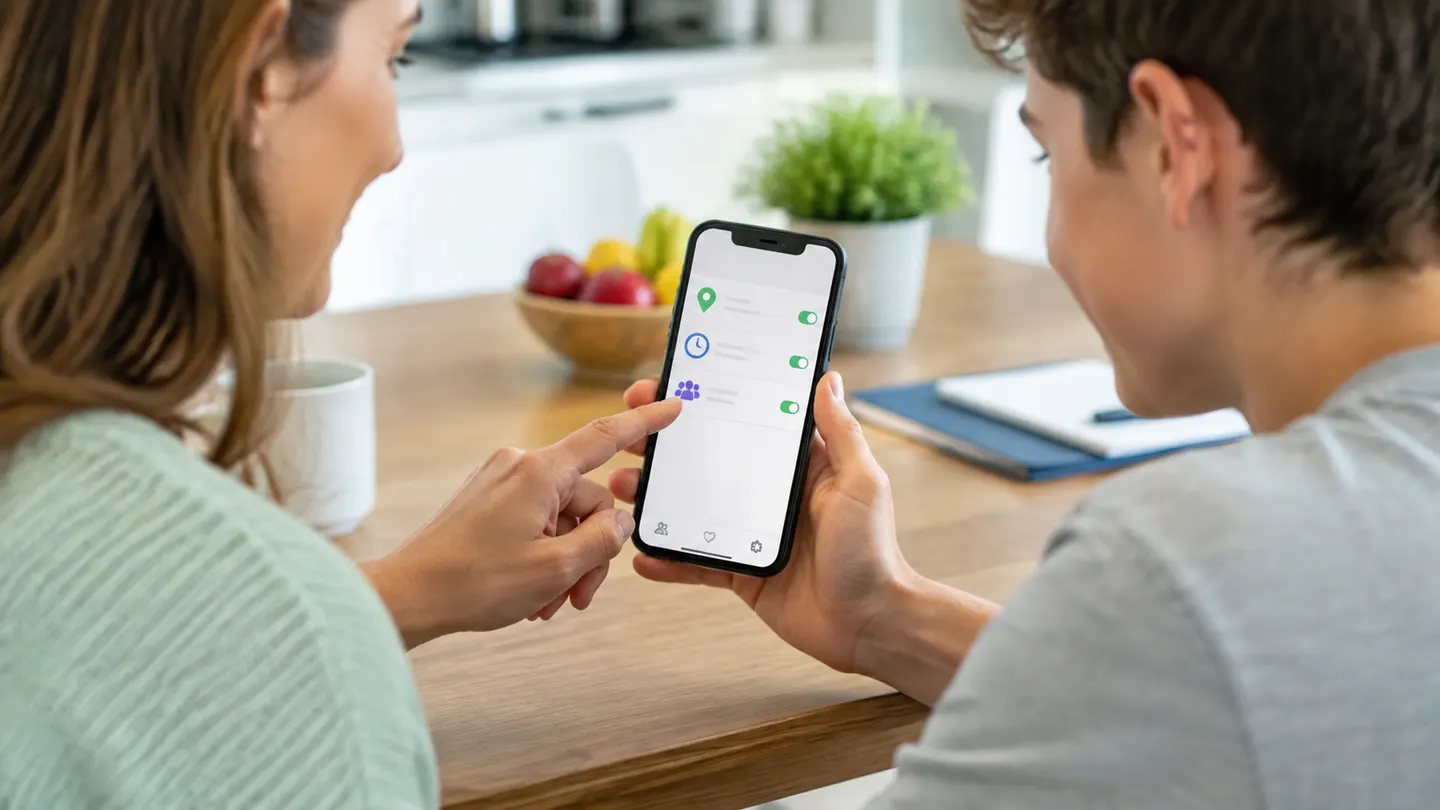
Parental control apps for iPhone compared
| Option | Best for | Setup reality on iPhone | Cost type |
|---|---|---|---|
| Apple Screen Time | Free built-in controls | Family Sharing and the child’s Apple Account | Free |
| Sphnix | Previewing a review dashboard | Confirm current supported workflow before purchase | Paid plans |
| Qustodio | Balanced limits and filtering | Parent and child setup; some features may require a computer | Free and paid tiers |
| Bark | Alerts about concerning activity | iPhone monitoring uses a different workflow from Android | Subscription |
| mSpy | Comparing broader monitoring | Features depend on device, account access, and plan | Subscription |
| Eyezy | Simple parent dashboard comparison | Verify current iOS compatibility and data-sync method | Subscription |
| Parentaler | Parent-focused monitoring shortlist | Confirm setup, supported features, and renewal terms | Subscription |
| Mobicip | Schedules and web filtering | Requires parent and child configuration | Subscription |
| FamiSafe | Mixed-device family tools | Install and pair the parent and child apps | Subscription |
| Norton Family | Web supervision for existing Norton homes | Check current iOS feature limits before purchase | Subscription or bundle |
The 10 best options for different families
1. Apple Screen Time: best free starting point
Best free
Screen Time is already built into the iPhone. With Family Sharing, a parent can manage app limits, downtime, purchases, content ratings, web access, communication settings, and privacy changes. It is the right first choice when the goal is healthy device use rather than reading private conversations.
Choose it when: every child uses an Apple device and you want dependable controls without another subscription.
Watch for: weak Screen Time passcodes, inconsistent family accounts, and devices that are not updated. Those setup problems cause many of the complaints blamed on the feature itself.
2. Sphnix: best demo-first dashboard
Spy Wizards pick
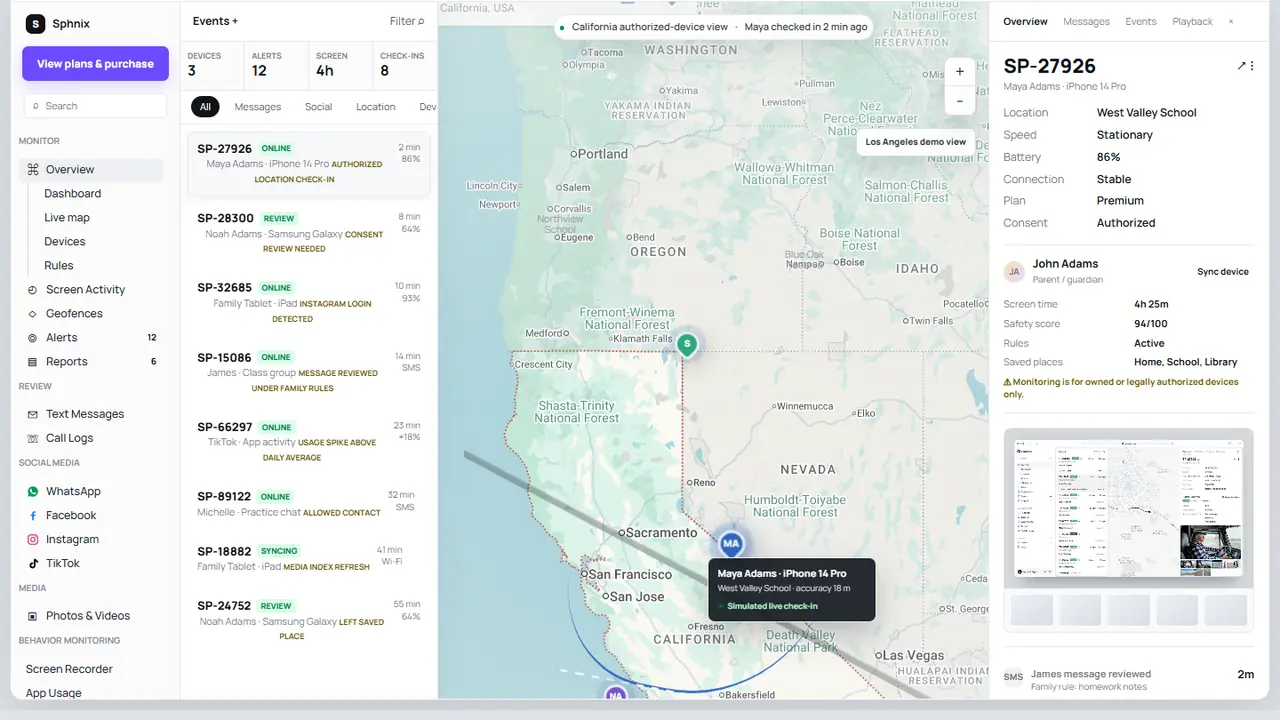
Sphnix gives buyers a full dashboard tour before payment. The demo shows how messages, calls, location, app activity, photos, reports, alerts, and device information are organized. That makes it easier to judge whether the review workflow suits your family.
Choose it when: you want to inspect the interface and reporting layout before selecting a plan.
Watch for: Sphnix is not a way to bypass an iPhone passcode or secretly access an arbitrary device. Confirm current setup requirements and supported functions first.
3. Qustodio: best established all-round control option
Balanced controls
Qustodio is a sensible comparison for families that want schedules, web filtering, app controls, location, and reports in one service. Its iPhone capabilities and setup are not identical to Android, so review the iOS documentation for the specific features you need.
Choose it when: you need a conventional parental-control service across several devices.
Watch for: some deeper features can involve a desktop component or a different workflow. Read our Qustodio review before deciding.
4. Bark: best for risk alerts
Alert focused
Bark is designed around alerts for potentially concerning content rather than giving parents a complete transcript of everything a child does. It also offers screen-time controls, web filtering, and location features. Its deeper iPhone monitoring uses a different setup from Android.
Choose it when: you prefer alerts that can start a conversation instead of constant manual review.
Watch for: make sure the required iPhone workflow fits how often the child’s device is available for syncing.
Some links in the next three comparisons are sponsored. Prices, compatibility, renewals, and refund terms can change, so verify them on the offer page before purchasing.
5. mSpy: best-known paid monitoring comparison
Commercial option
mSpy is widely searched by parents comparing phone-monitoring dashboards. On iPhone, the available data depends on the setup method, account access, software version, and plan. Do not assume every Android feature is included.
Choose it when: you want to compare a long-running commercial monitoring brand and have the access required for setup.
Watch for: renewal pricing, compatibility, and feature differences. Our mSpy review explains the tradeoffs.
6. Eyezy: best for a simple dashboard comparison
Commercial option
Eyezy belongs on a shortlist when a parent wants a straightforward monitoring dashboard and is comparing several subscription products. The useful question is not how many features appear in a marketing list; it is which features work with your child’s iPhone and setup.
Choose it when: you want an alternative to mSpy with a similar comparison process.
Watch for: current iOS support, installation requirements, data-refresh timing, cancellation, and renewal terms.
7. Parentaler: best parent-focused paid shortlist
Commercial option
Parentaler is positioned specifically for family supervision. It is worth comparing when you want a parent-oriented dashboard and do not need the broader brand recognition of mSpy. As with every iPhone monitoring product, the setup details matter more than the headline feature count.
Choose it when: your use case is a parent-managed child device and you want a focused paid option.
Watch for: iPhone compatibility, access requirements, subscription renewals, and local rules.
8. Mobicip: best for detailed schedules
Scheduling
Mobicip is a useful comparison for parents who care most about schedules, web filtering, app limits, and managing several family devices. It follows the familiar parent-app and child-app model.
Choose it when: daily routines, bedtime, homework periods, and web categories matter more than message monitoring.
Watch for: check which browsers and apps are covered on the current iOS release.
9. FamiSafe: best for mixed-device homes
Cross platform
FamiSafe combines screen-time rules, app controls, location tools, and activity reporting. It is worth a look when the household uses both iPhone and Android devices and one parent dashboard is important.
Choose it when: you want a cross-platform family-management product rather than an iPhone-only setup.
Watch for: feature differences between iPhone and Android and the permissions required on the child’s phone.
10. Norton Family: best for existing Norton households
Bundle option
Norton Family can make sense for households already paying for a Norton family or security bundle. Its strengths are conventional web supervision and time management rather than promising unrestricted access to an iPhone.
Choose it when: you already use Norton services and want parental controls under the same account.
Watch for: compare the current iPhone feature list with Android before treating the two as equivalent.
How to choose an iPhone parental control app
Screen time, web filtering, app approval, location, and risk alerts need different tools.
Confirm whether the app requires installation, Family Sharing, Apple Account access, or a computer.
Do not rely on an Android feature list when the child uses iOS.
Check trial length, renewal price, cancellation, refunds, and the number of covered devices.
Read the App Store privacy label and the vendor’s retention and deletion policy.
Explain the rules, what is collected, and how the child can request more time or discuss an alert.
Our comparison method
We did not assign fake laboratory scores or claim that every app was tested on every iPhone. The shortlist is based on current iPhone relevance, clarity about setup, breadth of family controls, availability of a parent dashboard, privacy considerations, and whether the product fits a distinct use case. Product features and terms change, so the purchase links are for checking current compatibility rather than guaranteeing a specific function.
Set up controls without damaging trust
Parental controls work better when a child understands the rules. Explain which apps are limited, what location sharing is used for, and what happens when an alert appears. Use the least intrusive setting that addresses the real problem. Review the rules as the child gets older.
For a practical family routine, see our guide to apps to control screen time. For the privacy question behind monitoring, read should parents check their child’s phone?
Frequently asked questions
What is the best parental control app for iPhone?
Apple Screen Time is the best free starting point for most all-Apple families. A paid app may be a better fit when you need cross-platform management, a separate dashboard, location tools, or additional alerts.
Can parental control apps read text messages on iPhone?
Some vendors advertise limited message monitoring through specific setup methods, but iOS restricts third-party access. Check the current iPhone documentation and required access before paying. No legitimate app can read any iPhone’s messages using only its phone number.
Can I control my child’s iPhone from my Android phone?
Some cross-platform services provide an Android parent app for managing an iPhone child device, but the child-side iOS features can be narrower. Confirm the exact parent and child device combination with the vendor.
Are free iPhone parental controls enough?
They are enough for many families that need app limits, downtime, purchase approval, web restrictions, and communication controls. Paid tools become useful when a household needs cross-platform reporting, extra alerts, or a different dashboard.
Can a parental control app be hidden on an iPhone?
Parents should not assume a third-party app can or should be hidden. iOS permissions, profiles, Screen Time settings, and installed apps can be visible. Transparent family rules are safer than covert monitoring.
Bottom line
Choose the least invasive tool that solves the problem. Start with Apple Screen Time, use the Sphnix demo if you want to inspect a broader dashboard, and compare paid products only after confirming their current iPhone setup and subscription terms. A realistic product page should tell you what it cannot do as clearly as what it can.
Leave a Reply