
If you searched how to remove a hacker from my phone, start with containment before deleting random apps. Turn on airplane mode, change your Apple Account or Google Account password from a trusted device, remove unknown apps and profiles, update the phone, and review active sessions on email, banking, and social accounts. If the phone still behaves strangely after cleanup, back up only essential files and consider a factory reset.
Updated September 3, 2026
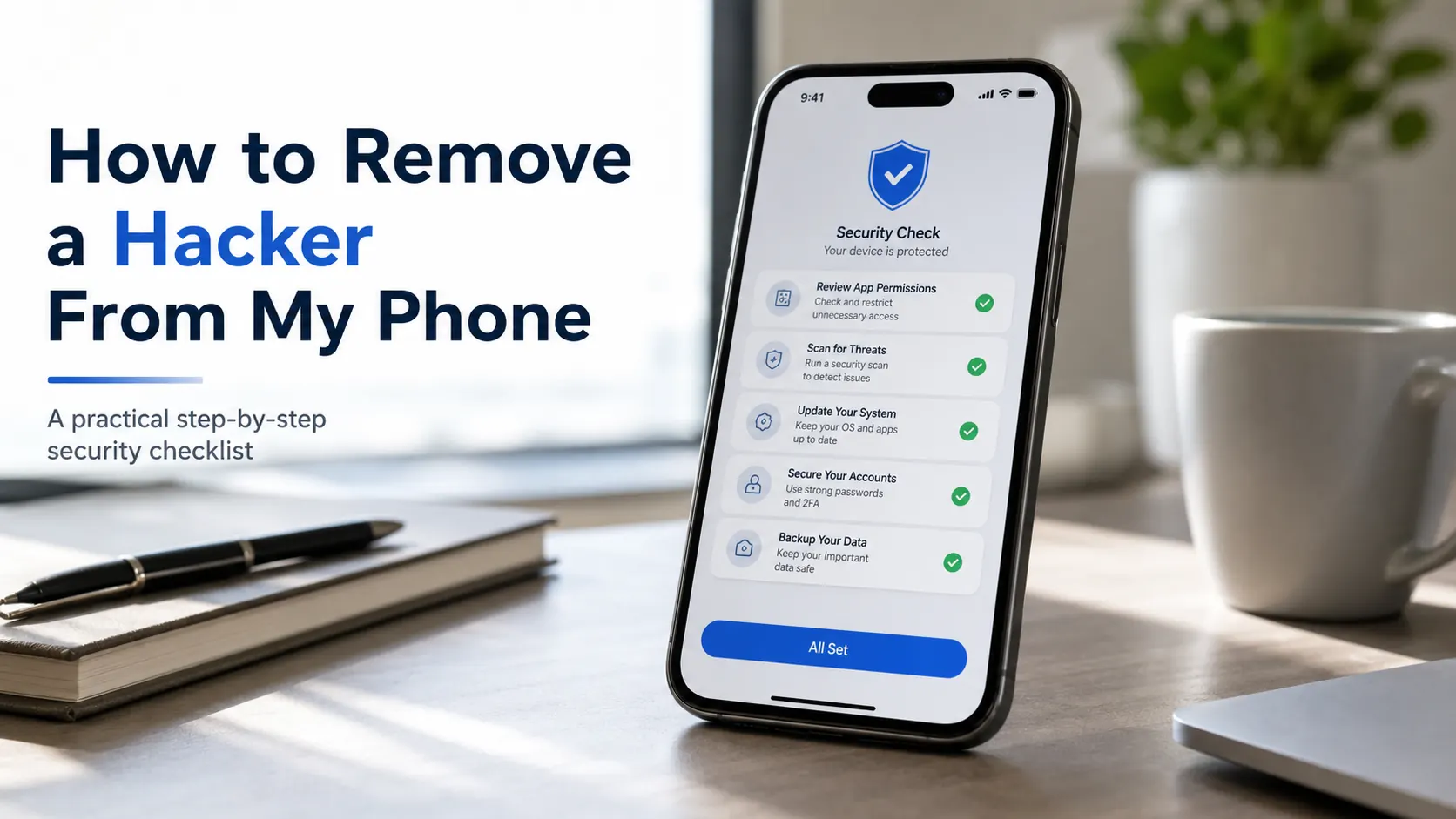
Quick answer: Most phone hacks are not movie-style remote control. They usually come from stolen passwords, malicious apps, unsafe profiles, SIM swaps, phishing links, or someone who had physical access to your phone. The fix is a layered cleanup: isolate the device, secure accounts, remove suspicious control points, update software, scan where possible, then reset if symptoms continue.
- Fastest first step: use another trusted device to change your email, Apple Account, or Google Account password.
- Most important Android check: unknown apps, Device Admin apps, Accessibility access, VPNs, and Play Protect warnings.
- Most important iPhone check: Apple Account trusted devices, VPN and Device Management profiles, unknown apps, and iOS updates.
- Last resort: factory reset, then set up as new instead of restoring suspicious app data.
Before You Start: Is Your Phone Actually Hacked?
One odd symptom does not prove a hacker is inside your phone. Battery drain, overheating, and pop-ups can come from old software, a bad app, browser spam, or failing hardware. Treat the situation seriously if you see several warning signs together, especially account alerts or settings changes you did not make.
If you have not yet confirmed which signals matter, use the phone privacy risk check before moving into removal and reset steps.
Common signs of a hacked phone
- New logins, password reset emails, or two-factor authentication prompts you did not request.
- Unknown apps, device admin tools, accessibility permissions, VPNs, or configuration profiles.
- Messages, calls, emails, purchases, or social posts you did not create.
- Sudden data usage, battery drain, heat, pop-ups, redirects, or unknown calendar events.
- Your Apple Account, Google Account, email, or social accounts show devices you do not recognize.
- Your SIM stops working, texts stop arriving, or your carrier account changes unexpectedly.
How to remove a hacker from my phone: emergency checklist
Do these steps in order. The mistake many people make is deleting apps first while the attacker still controls the email account or recovery phone number. Secure identity and account access first, then clean the device.
- Disconnect the phone. Turn on airplane mode, then turn Wi-Fi off. If you need internet for updates, reconnect only when you are ready.
- Use a trusted device. Change passwords from a computer or phone you believe is clean.
- Secure your email first. Your email controls password resets for Apple, Google, banking, and social accounts.
- Change your Apple Account or Google Account password. Sign out unknown devices and remove old recovery options.
- Turn on two-factor authentication. Use an authenticator app or security key where available. Avoid SMS as the only factor if you suspect SIM swap risk.
- Remove suspicious apps, profiles, VPNs, and permissions. Focus on control points, not only app icons.
- Update the phone. Install the latest iOS or Android security update.
- Check financial and social accounts. Sign out unknown sessions and review forwarding rules, linked devices, and recovery settings.
- Factory reset if symptoms continue. Set up as new and reinstall apps manually from official stores.
How to remove a hacker from an Android phone
Android gives users more flexibility, which also means a malicious app can sometimes hide behind permissions. Work through installed apps, admin rights, accessibility services, notification access, VPNs, sideloading, and Play Protect.
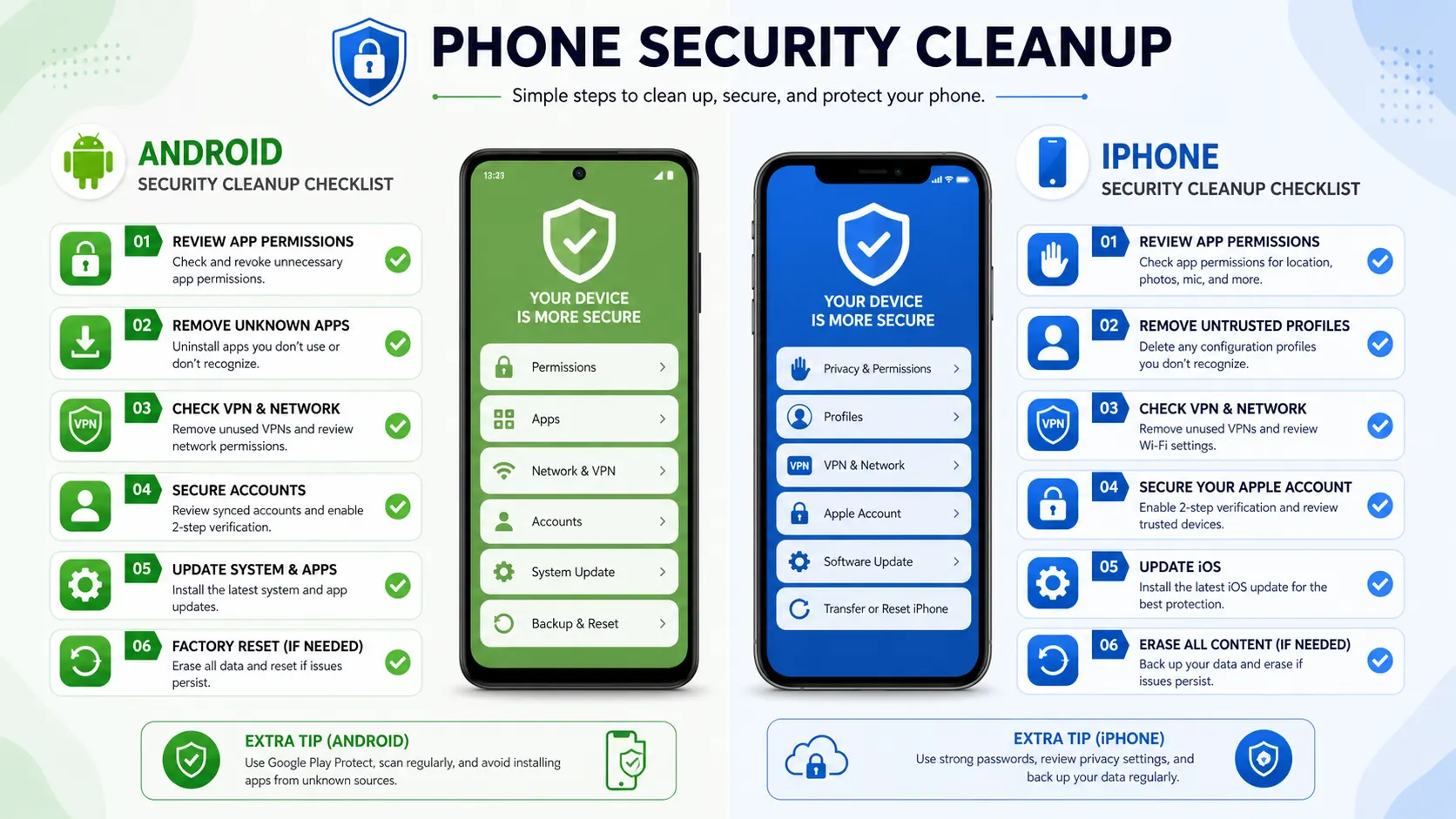
1. Turn on Play Protect and scan
Open Google Play, tap your profile icon, choose Play Protect, and run a scan. Make sure harmful app detection is enabled. If Play Protect flags an app, remove it unless you have a clear business reason and know the source.
2. Remove unknown apps and APKs
Go to Settings > Apps and sort by recently installed if your phone allows it. Delete apps you do not recognize, apps with vague names, apps outside the Play Store, old APK installers, “cleaner” apps, fake antivirus apps, and remote support tools you did not request.
3. Check Device Admin apps
Some spyware and control apps ask for device administrator rights so they are harder to uninstall. Look for Device Admin apps or Device administrators in Settings. Turn off admin access for anything unfamiliar, then uninstall the app.
4. Review Accessibility access
Accessibility services can read screen content or automate taps when abused. Go to Settings > Accessibility and turn off services you do not recognize. Be careful with apps that claim to be boosters, cleaners, notification tools, or hidden utilities.
5. Check notification, SMS, and usage access
Review apps with notification access, SMS permissions, call log access, usage access, and screen overlay permission. These permissions can expose verification codes, messages, and app activity.
6. Remove unknown VPNs and certificates
Open network settings and check VPN profiles, private DNS, and certificates. Remove anything you did not install. A malicious VPN can redirect or inspect traffic, and an unknown certificate can weaken trust decisions.
7. Boot into Safe Mode if an app resists removal
Safe Mode starts Android with third-party apps disabled. If the problem stops in Safe Mode, a downloaded app is likely involved. Uninstall suspicious apps before restarting normally.
8. Update Android and restart
Install system updates and Google Play system updates. Many mobile attacks depend on old vulnerabilities. A fully updated phone closes common paths used by malicious apps and exploit kits.
How to remove a hacker from an iPhone
iPhones are harder to infect with traditional malware, but they can still be compromised through Apple Account theft, phishing, malicious calendar spam, unsafe profiles, unknown VPNs, or someone who previously had your unlocked phone.
1. Secure your Apple Account
From a trusted device, change your Apple Account password. Review trusted phone numbers, recovery email, and signed-in devices. Remove anything you do not recognize, then turn on two-factor authentication if it is not already enabled.
2. Remove unknown profiles and device management
Go to Settings > General > VPN & Device Management. If you see a configuration profile, MDM profile, or VPN you do not recognize, remove it. Apple states that removing a profile also removes its settings and related information.
3. Delete suspicious apps
Open Settings > General > iPhone Storage and review the full app list. Remove apps you do not use or do not remember installing. Reinstall important apps only from the App Store.
4. Clear browser and calendar spam
If the “hack” appears as pop-ups, redirects, or fake virus warnings, clear Safari website data and remove suspicious calendar subscriptions. Many fake phone hack alerts are browser or calendar spam, not full device compromise.
5. Update iOS
Open Settings > General > Software Update. Install the latest version available for your device. Security updates matter because attackers often rely on older bugs.
6. Reset if you cannot trust the phone
If unknown profiles return, apps reappear, your Apple Account keeps showing strange sessions, or the phone still behaves as compromised, back up photos and essential files, then erase the phone. Set it up as new where possible.
Account Lockdown: The Part Most People Miss
Phone cleanup is only half the job. If the hacker has your email password or cloud account, they can come back even after you delete apps. Work through this account checklist after device cleanup.
| Account area | What to check | Why it matters |
|---|---|---|
| Password, forwarding rules, recovery email, logged-in devices | Email controls password resets for most accounts. | |
| Apple Account or Google Account | Trusted devices, recovery phone, app passwords, 2FA | This controls backups, app installs, and device services. |
| Banking and payment apps | Recent transactions, saved devices, alerts | Financial abuse can continue after the phone is cleaned. |
| Social and messaging apps | Linked devices, active sessions, recovery settings | Attackers often keep access through web sessions. |
| Carrier account | SIM changes, port-out lock, account PIN | SIM swaps let attackers intercept SMS codes. |
Will a Factory Reset Remove a Hacker From My Phone?
In many common cases, yes. A factory reset removes downloaded apps, resets settings, and clears most consumer spyware. It is the right move when you cannot identify the bad app, when symptoms continue after cleanup, or when someone else had physical access to the device.
A factory reset is not a magic fix for every scenario. If the real problem is a stolen password, compromised email, SIM swap, or cloud account takeover, the attacker may return after the reset. Secure accounts before and after the reset.
Before resetting
- Save evidence: screenshots, alerts, unknown app names, login emails, and transaction records.
- Back up photos, contacts, and essential documents only.
- Do not restore unknown apps or suspicious full-device backups.
- Make sure you know your Apple Account or Google Account password before erasing.
After resetting
- Set up the phone as new if you suspect the backup contains the problem.
- Reinstall apps manually from the App Store or Google Play.
- Turn on automatic updates.
- Use unique passwords and an authenticator app.
- Check sessions again after 24 to 48 hours.
When to Get Professional Help
Use a professional device security review if you are dealing with stalking, financial fraud, repeated account takeover, a workplace device, legal evidence, or a phone used by an executive or public figure. A good review should be consent-based, documented, and focused on recovery and prevention. Avoid anyone who offers to hack another person’s phone, bypass passwords, or spy without permission.
When This Becomes Urgent
Some phone incidents need faster action than a normal cleanup. If money, safety, or identity access is involved, preserve evidence and contact the right provider before you wipe the phone.
- Banking fraud: call your bank, freeze cards if needed, and review payment apps before resetting the device.
- SIM swap signs: contact your carrier immediately, ask for a port-out lock, and add a carrier account PIN.
- Stalking or domestic abuse concerns: use a trusted device to seek help, preserve screenshots, and avoid alerting the other person before you have a safety plan.
- Extortion or threats: do not pay, do not engage further, and save messages, account alerts, phone numbers, and payment demands.
- Work or school phone: contact the IT administrator because managed devices may have profiles you cannot remove yourself.
Need a human review? Spy Wizards can help with lawful mobile security triage, account risk review, and device hardening for phones you own or are authorized to manage.
Request a device security review or read our cell phone security and recovery service page.
Looking for authorized family monitoring instead?
Sphnix does not remove malware or recover a compromised account. It is a monitoring dashboard for a phone you own or are authorized to manage. Inspect the interface first, then compare plans only if that is your actual use case.
How Hackers Usually Keep Access
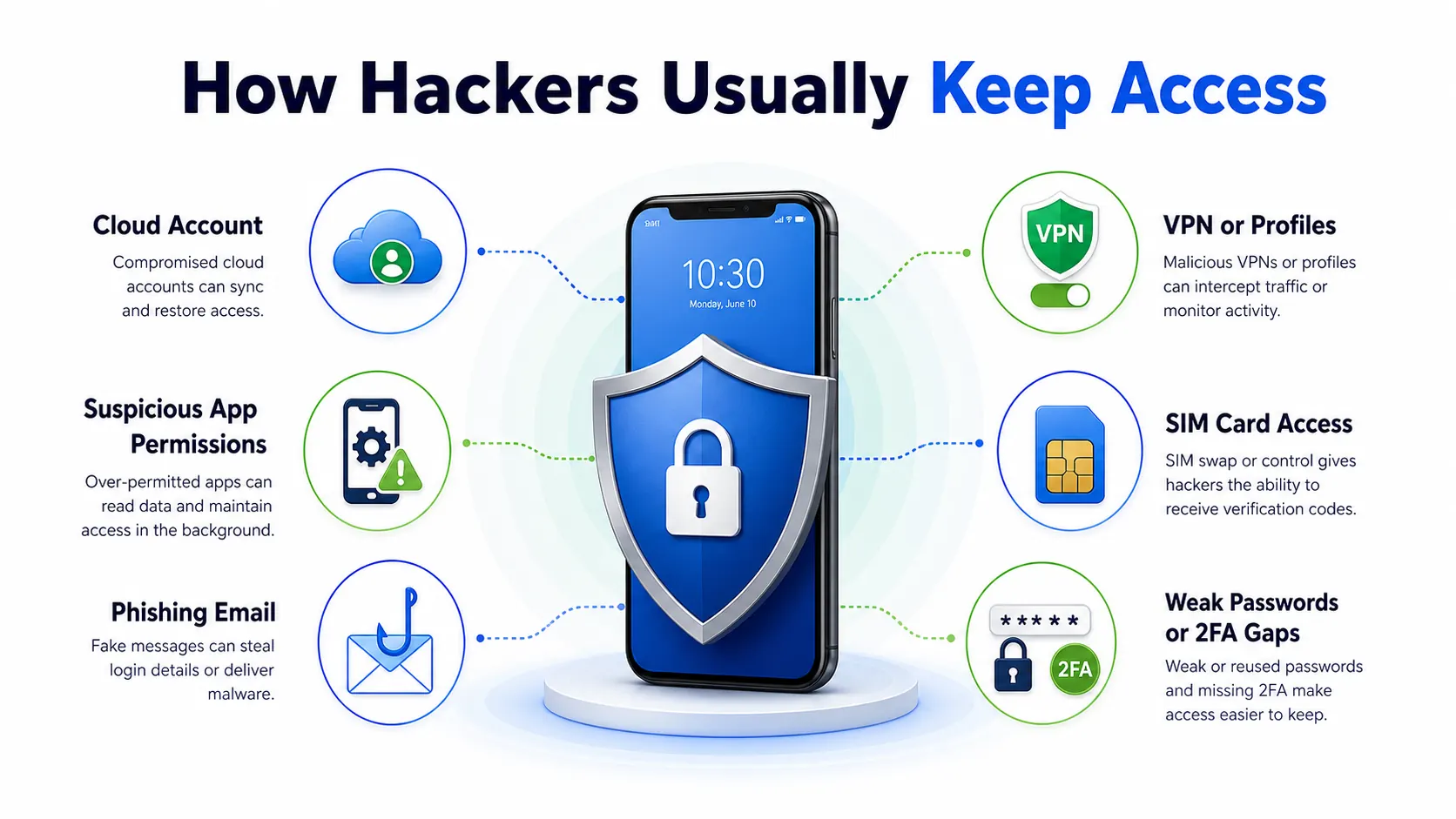
Phone attackers usually keep access through accounts, permissions, or carrier weaknesses rather than a single obvious “hacker app.” Check these control points before you assume the phone is clean.
- Cloud accounts: Apple Account, Google Account, email, and backup access can restore an attacker after device cleanup.
- Risky permissions: Accessibility services, Device Admin apps, notification access, SMS access, and VPN settings can expose activity.
- Management profiles: unknown configuration profiles or MDM entries can control settings on iPhone and some work-managed devices.
- SIM swap and carrier access: a weak carrier account can let someone intercept SMS codes or move your number.
- Phishing and password reuse: stolen passwords let attackers return even after you uninstall suspicious apps.
For platform-specific guidance, review Apple’s instructions for securing a compromised Apple Account, Google’s Android help on removing malware or unsafe software, and the FTC’s advice on using two-factor authentication.
Prevention: Keep the Hacker From Coming Back
- Use a password manager and unique passwords for email, Apple, Google, banking, and social accounts.
- Use two-factor authentication, preferably an authenticator app or hardware security key.
- Keep iOS, Android, and apps updated.
- Install apps only from the App Store or Google Play.
- Avoid unknown links, fake virus warnings, and random support calls.
- Lock your SIM with a carrier PIN or port-out protection.
- Review app permissions, logged-in devices, and recovery settings every month.
Related Spy Wizards Guides
- Cell Phone Hacking: Ethical Testing, Recovery, and Protection
- Can You Get Hacked by Calling a Number?
- Is It Illegal to Hack a Phone?
- How to Check If Your Data Has Been Breached
- Complete Personal Cybersecurity Checklist
Frequently Asked Questions
How do I remove a hacker from my phone immediately?
Disconnect the phone, secure your email and cloud account from a trusted device, remove suspicious apps or profiles, update the operating system, and sign out unknown sessions.
Can someone hack my phone without touching it?
It is possible in some cases, but most everyday incidents come from phishing, stolen passwords, malicious apps, unsafe profiles, SIM swaps, or previous physical access. Treat account security as seriously as device cleanup.
Does factory reset remove spyware?
A factory reset removes most common consumer spyware and suspicious apps. It will not fix a compromised email, Apple Account, Google Account, or carrier account unless you secure those too.
How do I remove a hacker from my iPhone?
Secure your Apple Account, remove unknown VPN or Device Management profiles, delete suspicious apps, update iOS, and erase the iPhone if the same warning signs continue.
How do I remove a hacker from my Android phone?
Run Play Protect, remove unfamiliar apps, turn off suspicious Device Admin or Accessibility access, check VPNs and certificates, update Android, and use Safe Mode or factory reset if needed.
Should I call my carrier if my phone was hacked?
Yes, if texts stop arriving, your SIM loses service, you see unknown account changes, or you rely on SMS codes. Ask for a carrier PIN and port-out protection.
Can antivirus remove a hacker from my phone?
Mobile security apps can help find known malware, especially on Android, but they do not replace manual checks for account sessions, recovery settings, profiles, VPNs, and permissions.